



wattXplorer
Transform the Future Through Visualization of Power Consumption and CO₂ Emissions
- Easy installation and start collecting data right away
- Visualization of electricity usage and calculation of CO₂ emissions
- In addition to power, temperature measurement (2 points) is also possible ※
- Clarifying areas for improvement on-site and promoting efficiency
※Optional two-point measurement using thermocouples available
Features
Why do you need to know your CO₂ emissions?
With climate change countermeasures now urgent, companies are being asked to take concrete steps to reduce CO₂. The very first step is to “accurately understand” how much CO₂ you are emitting. Once you know the facts, you can recognize the issues and map out effective countermeasures.
When electricity is visible, CO₂ emissions are visible
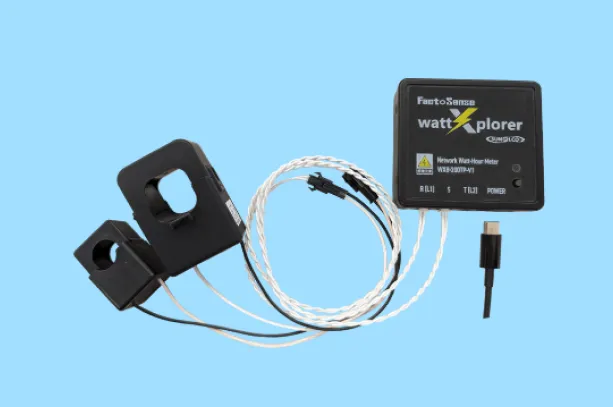
Power consumption and CO₂ emissions are closely linked. Visualizing “which equipment is using the most electricity” and “where wasteful energy use is occurring” makes it easy to pinpoint CO₂ reduction opportunities. Because wattXplorer is a sensor that simply clamps onto a power line and wirelessly transmits real-time power data to the cloud or on-premise servers, visualizing power and calculating CO₂ emissions becomes quick and effortless.
When electricity is visible, the shop floor changes
Making electricity usage visible changes awareness on-site. “Which equipment is currently in operation?” “Is there any wasteful operation?” wattXplorer also visualizes equipment operating status, standby power, aging changes, and abnormalities. By making strain, waste, and unevenness visible with concrete data, on-site issues become clear and improvement activities naturally accelerate. Productivity improves and energy costs are reduced.
Take the first step toward the future
“wattXplorer” is the perfect tool for balancing power management with environmental considerations. To change the future of your company, why not start by “visualizing” your power and CO₂ emissions?
Let’s change the future of the world and your company through visualization!
Specifications
| Power supply | 5V(USB-TypeC) |
|---|---|
| Measurable current | 0.1–600 Arms, 50 Hz / 60 Hz |
| Operating temperature and humidity | -10 °C to +55 °C, up to 85 % RH (no condensation) |
| Installation environment | Indoor |
| Supported connections | 1P2W, 1P3W, 3P3W, 3P4W |
| Measurement targets | Current, Temperature (thermocouple ×2) ※Temperature measurement is optional |
| Current measurement error | ±1 % F.S. ±1 digit at 25 °C (excluding current sensor error) |
| Communication interface | Wi-Fi (IEEE 802.11 b/g/n 2.4 GHz) |
| Communication protocol | MQTT QoS 1, Modbus/TCP |
| Data acquisition interval | 1 / 10 / 30 / 60 seconds |
| Data transmission interval | 10 / 20 / 30 / 60 seconds |
| Power consumption | ≦ 1.0 W |
| Mass | 90 g (main unit only) |
| Mounting method | Magnet |
| Display & Operation | LED, setting switch, reset switch |
| Vibration resistance | Constant amplitude: 3.5 mm, constant acceleration: 9.8 m/s² Sweep, 1 octave/min 10 sweep cycles for each of the three axes |
| Electromagnetic environment | JIS C 61000-4-2, JIS C 61000-4-3, JIS C 61000-4-4, JIS C 61000-4-6, JIS C 61000-4-8, CISPR 32 |
Models used during testing (reference) Cable: MPA-AC30NWH USB adapter: ACA-IP70W
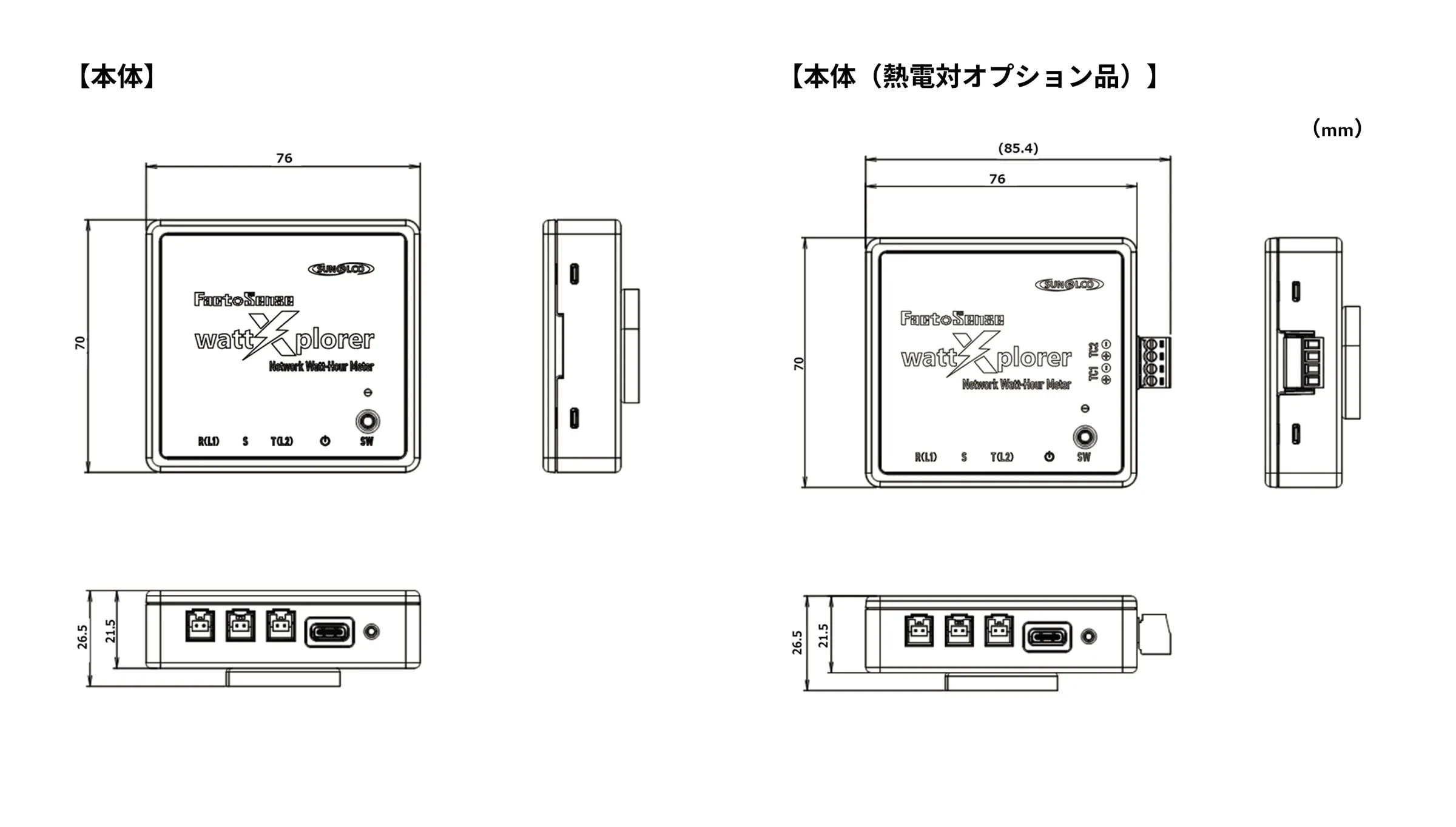
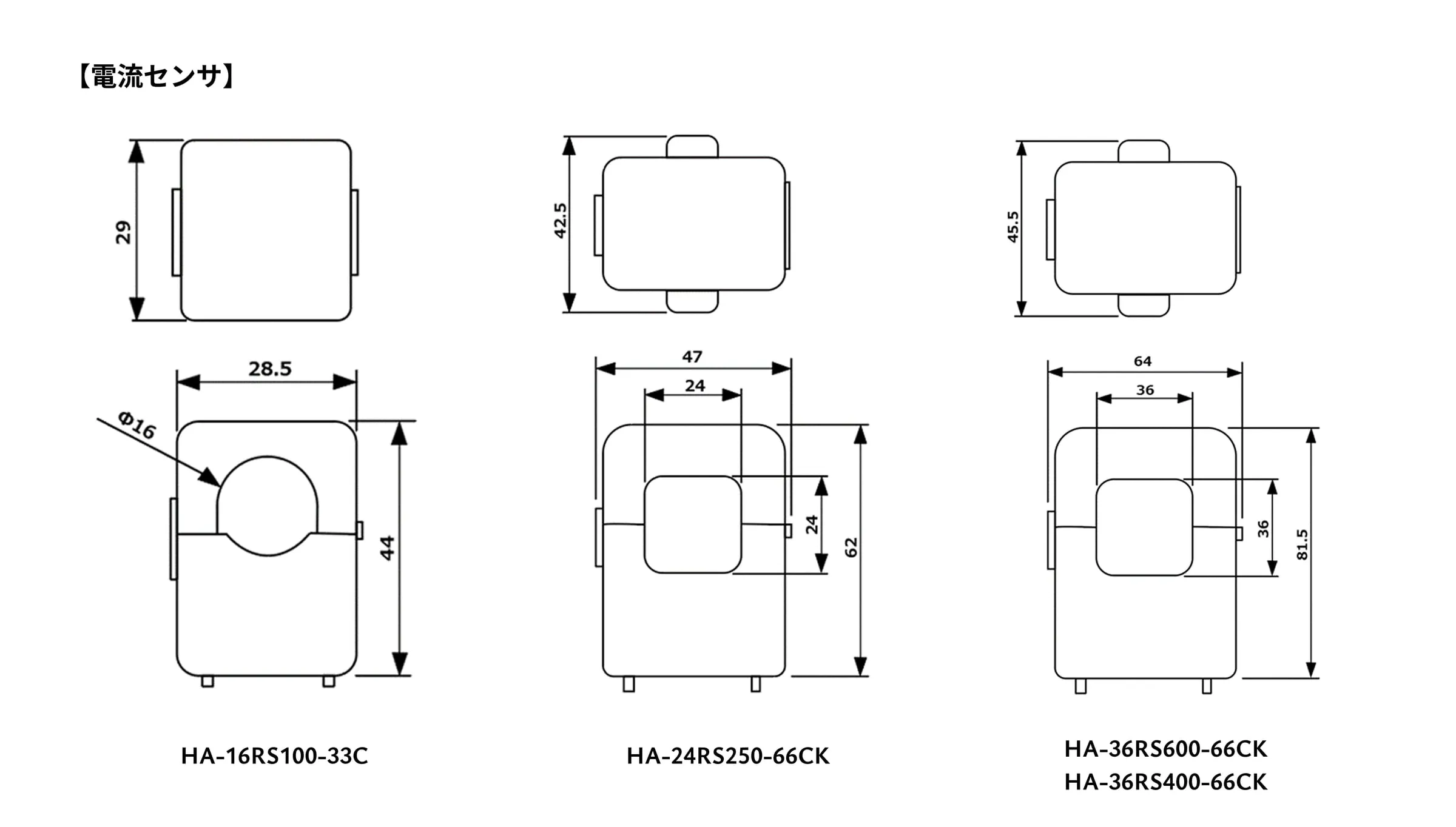
External dimensions
Case Studies
Case Study (Lumiot website)
Note: The Lumiot website is Kyokko Electric Co., Ltd.’s official site featuring the IoT solutions we provide.
Download
| wattXplorer Product Manual | |
|---|---|
| wattXplorer Quick Start Guide | |
| WXG User Manual (Quick Guide) | |
| wattXplorer Communication Specifications | |
| WXG Server Setup Guide | |
| wattXplorer Leaflet |